Unicorn Coloring Page and Coloring Book: A Practical Resource for Creative Professionals and Publishers
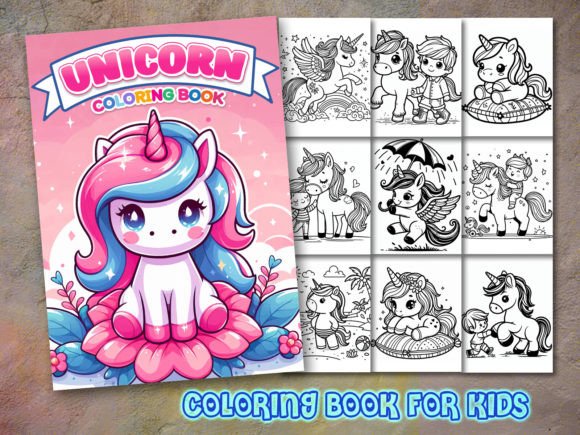
Unicorn Coloring Page and Coloring Book isn’t just a collection of whimsical illustrations—it’s a production-ready asset toolkit designed for creators who value precision, flexibility, and efficiency. Whether you’re launching a KDP coloring book, building a branded digital product, or developing themed educational materials, this resource bridges the gap between creative vision and technical execution. Its structure—40 high-resolution interior pages plus three professionally sized cover designs—supports real-world publishing workflows without requiring graphic design expertise.
How It Fits Into Your Publishing or Creative Workflow
This package integrates most effectively during the interior layout and cover design phase—not before concept development, and not after final proofing. You’ll use it *after* defining your book’s theme, audience, and structural requirements (e.g., page count, bleed settings, KDP trim size), but *before* assembling the PDF interior or finalizing cover mockups. That timing ensures you’re not designing around placeholder art or scaling low-res images that degrade in print.
For example, a freelance illustrator preparing a 40-page unicorn-themed coloring book for Amazon KDP will import the included PNGs directly into InDesign or Affinity Publisher. Because each image is 8.5″ × 11″ at 300 dpi, they drop in at exact print dimensions with no resizing artifacts. No pixelation. No guesswork. The same applies to educators creating classroom handouts or marketers building branded activity kits—the files are production-safe from the first import.
Why File Format Variety Matters in Practice
The inclusion of four file formats—PNG, PDF, EPS, and SVG—isn’t decorative. Each serves a distinct functional role across stages of use:
- PNG files (40, 300 dpi): Ideal for direct insertion into page-layout software or Canva. Transparent backgrounds allow clean layering over custom backgrounds or textures without clipping masks.
- PDF file (single document, 40 pages, 300 dpi): Enables fast review, printing for client approval, or quick conversion to a low-stakes sample PDF—no need to rebuild pagination manually.
- EPS files (40, vector-based): Essential when you need to resize without quality loss—for instance, adapting a full-page illustration into a half-page version for a companion workbook or resizing a detail for a social media banner.
- SVG files (40): Best for web integration, interactive coloring apps, or cutting machines (Cricut, Silhouette). They scale infinitely and support CSS styling or animation if embedded in digital products.
This format diversity eliminates common bottlenecks: no outsourcing vector conversion, no re-tracing line art, no last-minute resolution panic before KDP upload. It also supports long-term reuse—you can extract one SVG for a newsletter graphic today and repurpose the same EPS for a trade show banner next year.
Using the Cover Designs Strategically
The three included Unicorn Coloring Book cover images aren’t generic templates. Each is a complete, print-ready 300 dpi file sized to KDP’s standard 6″ × 9″ (with bleed) or 8.5″ × 11″ specifications—ready for immediate upload or light customization. Use them as-is for speed, or treat them as editable starting points:
- Swap title fonts in Photoshop using smart objects—preserving original layer integrity.
- Adjust color balance to match your brand palette without degrading line clarity.
- Layer on your own subtitle or author name using precise alignment guides built into the file.
Because all covers share consistent visual language (line weight, spacing, motif density) with the interior pages, your final book feels cohesive—not pieced together. That consistency reduces cognitive load for buyers browsing thumbnails on Amazon and increases perceived professionalism.
Integration With Common Tools and Platforms
You don’t need specialized software to begin. These files work natively with tools most professionals already use:
- KDP Interior Setup: Drag-and-drop the PDF into KDP’s previewer, or import individual PNGs into your layout tool. All meet KDP’s 300 dpi requirement and 8.5″ × 11″ interior spec.
- Canva Pro: Upload SVGs or PNGs to create social ads, email headers, or printable promo sheets—scaling remains crisp even at large sizes.
- Affinity Designer / Adobe Illustrator: Edit EPS or SVG files to adjust line thickness, add gradients, or isolate elements for animated tutorials.
- Google Slides / PowerPoint: Insert PNGs for live coloring demos in virtual workshops or educator training sessions—no licensing concerns, since you hold full usage rights.
No plugin, converter, or third-party service is required. Compatibility is built in—not bolted on.
Quality Control and Consistency Checks
Before final export, run these three quick checks—each takes under two minutes and prevents common KDP rejections or customer complaints:
- Line Integrity Check: Zoom to 400% in your layout software. Ensure no strokes appear jagged or inconsistently weighted—especially around horn tips, mane curls, and wing edges. These files maintain clean vectors and anti-aliased raster lines at native size.
- Color Mode Confirmation: Verify your final PDF uses CMYK (not RGB) for print. The provided PDF is pre-set; PNGs and EPS files retain embedded profiles you can convert non-destructively in Illustrator or Photoshop.
- Bleed & Margin Alignment: Confirm cover files include 0.125″ bleed and safe zones. All three covers do—so text or key details won’t get trimmed during KDP’s automated print process.
These checks turn subjective “looks fine” judgments into objective, repeatable steps—critical when managing multiple titles or collaborating with editors or formatters.
Long-Term Usability and Scalability
This isn’t a one-off download. It’s an asset you’ll return to across projects. The SVG and EPS files remain editable years later—even as software versions change—because vector paths don’t rely on proprietary filters or effects. You can:
- Extract a single horn motif to use as a bullet point in a presentation deck.
- Combine two SVGs into a custom border for a printable planner page.
- Convert one EPS into a layered Procreate brush set for digital coloring courses.
That modularity supports iterative creation: refine one page, test it with users, then replicate the updated style across remaining interiors using the same base assets. No redrawing. No style drift.
Final Implementation Tip: Start With One Page, Not the Whole Set
Don’t try to layout all 40 pages at once. Begin with page 1, your cover, and the back matter (e.g., “About the Artist” or “How to Use This Book”). Test that trio end-to-end: upload to KDP’s previewer, print a physical copy, check margins and contrast. Once that core unit validates, batch the remaining interiors using consistent paragraph styles, spacing rules, and header treatments. This approach surfaces formatting issues early—and keeps momentum high.
Unicorn Coloring Page and Coloring Book works because it respects your time, your tools, and your standards. It doesn’t ask you to adapt to its limitations. Instead, it meets your process where it already is—structured, intentional, and ready to execute.